
Command Co
Command Co is a lightweight Minecraft utility mod designed to make frequently used commands faster and easier to manage. Create your own custom commands and shortcuts, save your favorite commands, view your command history, use ready-made presets, search through commands with fuzzy search, and edit or delete your shortcuts from one simple interface. Your commands are saved automatically, so they remain available between game sessions. Command Co also supports command arguments, allowing shortcuts to be reused with different values.
Features
- Custom Commands Create shortcuts like
gmc → gamemode creative. - Presets Quickly add useful pre-made shortcuts.
- Favorites Keep your most-used commands in one place.
- History Easily find and reuse recently executed commands.
- Edit & Delete Change or remove your custom shortcuts whenever you want.
- Search Quickly find commands with fuzzy searching.
- Arguments Use
{1},{2}, etc. for commands that need different values. - Categories Organize your commands.
- Vanilla-style UI Simple, compact, and familiar Minecraft interface.
- Mod Menu Support Open Command Co directly through Mod Menu.
How to Use
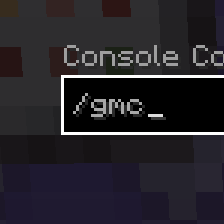
Open Command Co through Mod Menu, then select Custom → + Custom to create a shortcut. Give it a name, such as gmc, and enter the command it should run, such as gamemode creative. Save it, and from then on you can simply type /gmc in chat instead of typing the full command. Use the Favorites button to save commands you use often, History to find commands you've recently run, and Presets to browse and add ready-made shortcuts. You can edit or delete your custom commands from the Custom tab. Use the search bar to quickly find commands, and scroll through the list with your mouse wheel when you have lots of commands.
Example
Create:
gmc → gamemode creative
Then type:
/gmc
Command Co automatically expands it to:
/gamemode creative
For commands with arguments, you can use placeholders such as:
giveitem → give {1} diamond {2}
Then use:
/giveitem Steve 10
to run the corresponding expanded command.
UI
By running the command /ch you can open the ui or by using Mod Menu
*You may want to install Mod Menu for easier use.
No gallery available for this project.