

Paper plugin to play back video (and audio) in-game without the use of clientside mods.
Features
- Play local MP4/MKV/AVI/WEBM/MOV files or download videos directly from YouTube (optional)
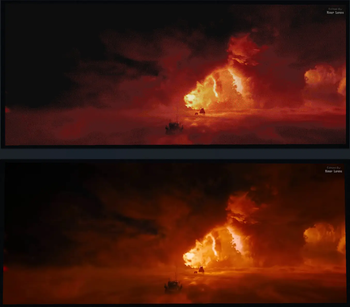
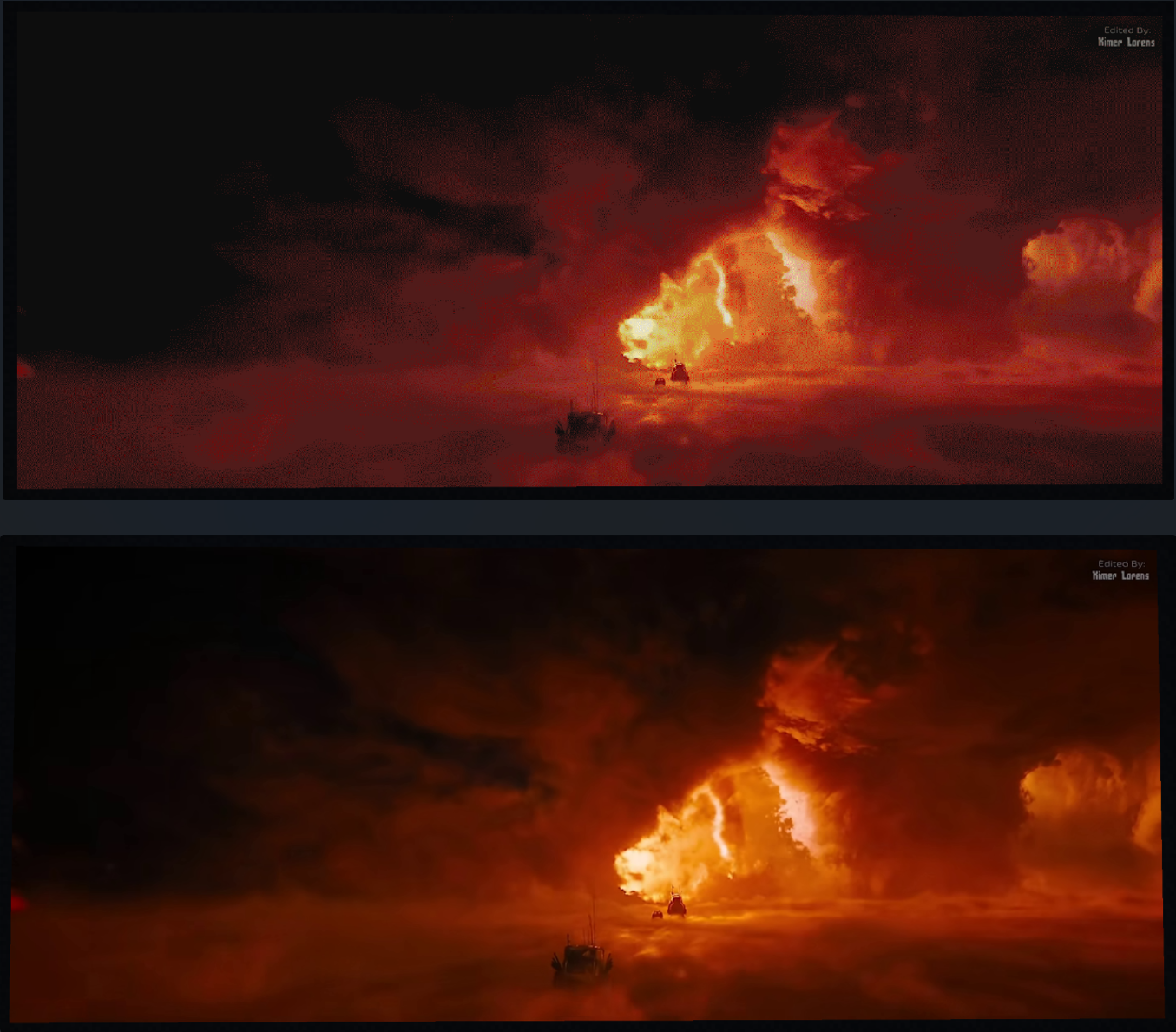
- Experimental full RGB mode, which works without any dithering leading to a superior image quality compared to similar plugins.
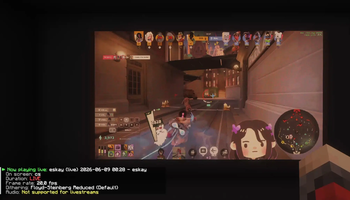
- Play Livestreams directly from Twitch or YouTube by simply using an URL instead (no audio).
- Automatic resource pack generation and hosting for synchronized audio playback for videos.
- True 1080p or even 4K playback with efficient tile-based rendering
- Only limit is the server and player bandwidth.
- Improved bandwidth usage. Down to 8 MB/s for a really large (2176x896) screen.
- Significantly improved visual quality
- Floyd-Steinberg, Stucki or Atkinson dithering with temporal noise reduction
- Full playback controls: pause, resume, seek, and skip
- Audio is sliced into seamless chunks to work around Minecraft's audio limitations
- Various compression techniques are used to reduce bandwidth usage as much as possible by only updating whats actually needed
- Selective updating, downsampling, dirty region detection and more
Basic usage
All commands have helpful tab-completion available
- Use
/mcc create <screen id> <aspect ratio> [x] [y]while looking at the lower left corner to create a screen- Tip: Make sure your screen is evenly lit, e.g. using light blocks.
- Place your video
.mp4files in/plugins/MCCinema/videos/ - Use
/mcc play <screen id> <video>to start playback. Optionally include the--audio <chunk size>parameter to play with audio.- For audio, this plugin will use mcpacks.dev for Resourcepack hosting by default.
- Alternatively, it can automatically host a resourcepack server if audio is enabled. On some hosts this may fail.
- To allow for resuming and pausing of playback, audio data is split into chunks of
<chunk size>seconds in length. The default value of 10s is usually good. - Use the
--experimentalflag to enable full RGB mode.
- You can use
/mcc quality <screen> <performance/balanced/quality>to change playback quality settings. This will have a significant effect on bandwidth and CPU usage. - Use
/mcc crop <screen>while a local video is playing to adjust its viewport. Scroll to zoom, use W/A/S/D to pan, and hold sneak for precise adjustments. The saved crop is reused whenever that video is played again.
To download videos from YouTube, run /mcc download.
There is some first-time setup required for this. MCC uses yt-dlp for this. You will be asked to confirm the yt-dlp download.
But of course you can also always download YouTube videos manually and place them in /videos/ yourself!
A note on bandwidth usage:
This plugin will inevitably create a lot of traffic. Minecraft isn't really a great video player.
This is optimized as best as possible (and likely better than many similar plugins), however it can still be a lot.
The actual amount of traffic scales with two factors: Screen size, and how dynamic the video is. Videos with very little movement such as slideshows will barely generate any traffic.
You can see live metrics, including bandwidth usage, using /mcc debug <screen id>. However note that those metrics are before compression. You can press F3+3 to get the built-in bandwidth graph, which will give you after compression bandwidth.
One example on a reasonably sized (7x4 blocks, 896x512) screen:
- Server Trailer: Average 3 MB/s
- This screen size gives you good enough resolution for most content
Two examples on a very large (17x7 blocks, 2176x896) screen:
Using Velocity with compression-threshold: 256 and compression-level: 4
- Bad Apple: Average 400 KB/s
- Only two colors, pillarboxing on both sides, many large same-color areas -> lower bandwidth usage
- Bite Marks: Average 8 MB/s
- Many colors, full CS format, very quick scenes -> high bandwidth usage
Configuration
You can find a full, commented configuration file here
Additional notes:
- This plugin makes heavy use of multi-threading and benefits from more and faster CPU cores significantly.
- Video and audio are streamed, so RAM usage should not be a meaningful concern. However, this plugin will create considerable GC pressure.
- It is recommended to use a Velocity proxy in front of your server, and to then disable
network-compression-thresholdinserver.properties. Doing so will offload the work of compressing and encrypting packets to the proxy, which can significantly improve performance and throughput. If that is not possible, increasingnetty-threadsin spigot.yml might be worth considering. If using Velocity, try playing around with thenetwork-compression-thresholdandcompression-levelsettings a bit. I had great results with256and4respectively. - Packets are bundled per frame, so packets-per-second should not be a concern here.
- You can tweak most config settings during video playback with
/mcc debug <screen> <setting> <value>. Depending on the video content, tweaking settings might have a big effect (e.g. anime style vs real life videos).
Showcase
Very large screen (17x7 blocks, 2176x896 CS) playing at 24FPS
<iframe width="560" height="315" src="https://www.youtube-nocookie.com/embed/duaVoQ2CYhc" title="YouTube video player" frameborder="0" allow="accelerometer; autoplay; clipboard-write; encrypted-media; gyroscope; picture-in-picture; web-share" allowfullscreen></iframe>Even larger screen sizes are supported, but you will run into bandwidth limitations



| Version | Minecraft | Loader | Download |
|---|---|---|---|
|
MCCinema 2.5.1 - Subtitles, lower RGB bandwidth & DCP support 2.5.1 |
26.2, 26.3
|
paper
|
Download |
|
MCCinema 2.5.0 - Fullscreen mode, RGB motion encoding and more 2.5.0 |
26.2, 26.3
|
paper
|
Download |
|
MCCinema 2.4.1 2.4.1 |
26.2
|
paper
|
Download |
|
Crop/Zoom, reworked media toolchain 2.4.0 |
26.1, 26.1.1, 26.1.2, 26.2
|
paper
|
Download |
|
MCCinema 2.3.3 2.3.3 |
26.1, 26.1.1, 26.1.2, 26.2
|
paper
|
Download |
|
MCCinema 2.3.2 2.3.2 |
26.1, 26.1.1, 26.1.2
|
paper
|
Download |
|
MCCinema 2.3.1 2.3.1 |
26.1, 26.1.1, 26.1.2
|
paper
|
Download |
|
MCCinema 2.3.0 - Livestream support! 2.3.0 |
26.1, 26.1.1, 26.1.2
|
paper
|
Download |
|
MCCinema 2.2.3 2.2.3 |
26.1, 26.1.1, 26.1.2
|
paper
|
Download |
|
MCCinema 2.2.2 2.2.2 |
1.21, 1.21.1, 1.21.2, 1.21.3, 1.21.4, 1.21.5, 1.21.6, 1.21.7, 1.21.8, 1.21.9, 1.21.10, 1.21.11
|
paper
|
Download |
|
MCCinema 2.2.1 2.2.1 |
1.21, 1.21.1, 1.21.2, 1.21.3, 1.21.4, 1.21.5, 1.21.6, 1.21.7, 1.21.8, 1.21.9, 1.21.10, 1.21.11
|
paper
|
Download |
|
MCCinema 2.2.0 2.2.0 |
1.21, 1.21.1, 1.21.2, 1.21.3, 1.21.4, 1.21.5, 1.21.6, 1.21.7, 1.21.8, 1.21.9, 1.21.10, 1.21.11
|
paper
|
Download |
|
MCCinema 2.1.0 2.1.0 |
1.21, 1.21.1, 1.21.2, 1.21.3, 1.21.4, 1.21.5, 1.21.6, 1.21.7, 1.21.8, 1.21.9, 1.21.10, 1.21.11
|
paper
|
Download |
|
MCCinema 2.0.1 2.0.1 |
1.21, 1.21.1, 1.21.2, 1.21.3, 1.21.4, 1.21.5, 1.21.6, 1.21.7, 1.21.8, 1.21.9, 1.21.10, 1.21.11
|
paper
|
Download |
|
MCCinema 2.0.0 2.0.0 |
1.21, 1.21.1, 1.21.2, 1.21.3, 1.21.4, 1.21.5, 1.21.6, 1.21.7, 1.21.8, 1.21.9, 1.21.10, 1.21.11
|
paper
|
Download |